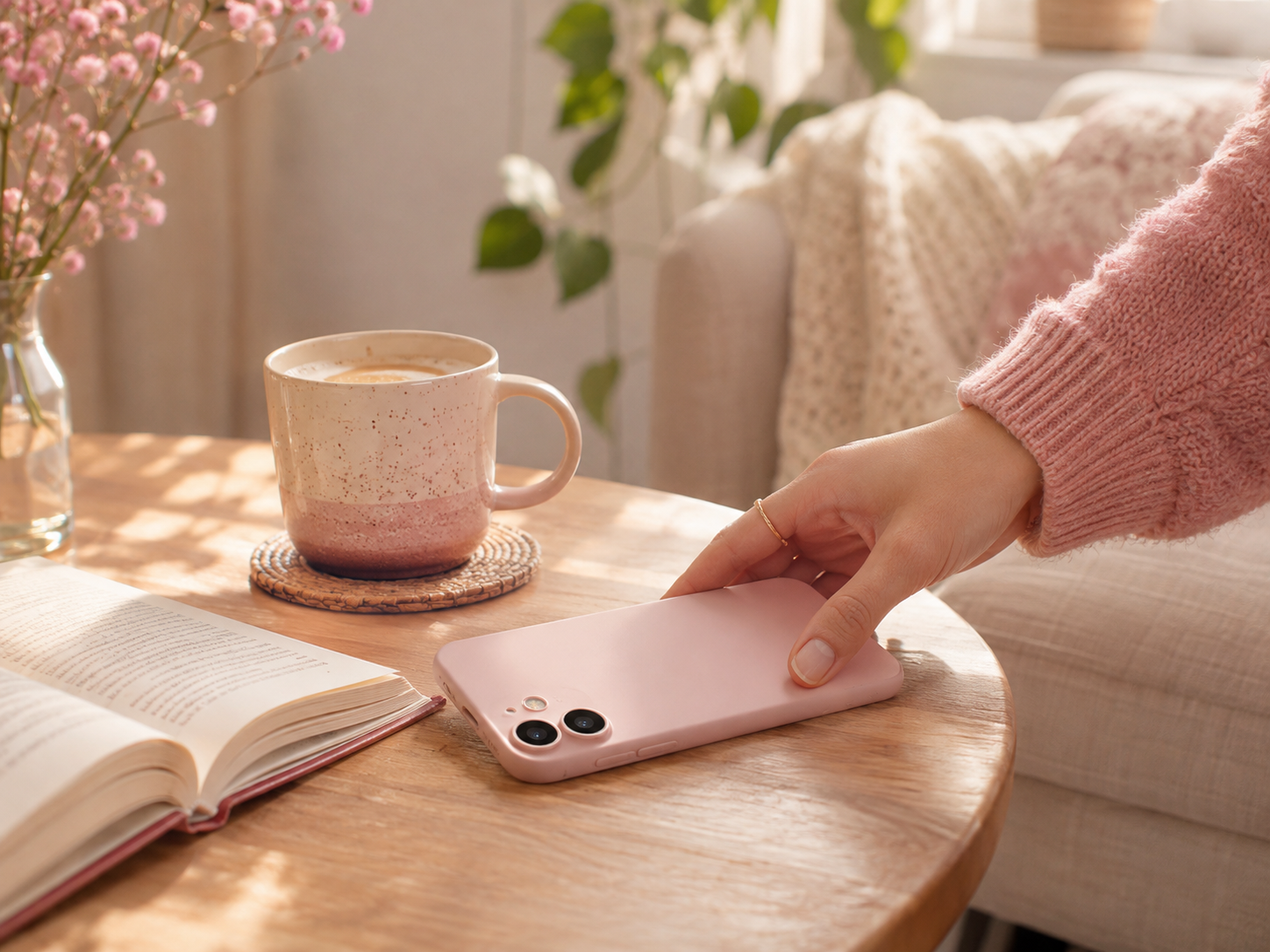
You pick up your phone to check the weather and look up 40 minutes later, somewhere deep in a stranger’s kitchen renovation. Sound familiar? You’re far from alone, and it isn’t a willpower problem. Many apps are built to keep you scrolling. The good news is that some apps are built to help you stop.
Here are the best apps for spending less time on your phone, from free settings already on your device to gentle “pause before you scroll” apps, stricter blockers and a physical device that locks your apps until you walk across the room. We’ve included what each one costs, who it’s best for and a simple way to start.
Prices and features were checked in November 2026 and can change, so confirm the details in your app store before you subscribe. None of these picks are sponsored. One link goes to an Amazon search; we don’t earn a commission from it.
Why so many of us want to cut back
If you feel like your phone takes up too much of your day, you’re in good company. In a Pew Research Center survey of U.S. adults conducted in May and June 2026, 53% said they spend too much time on their smartphone. That rose to 70% of adults under 30 and 64% of those ages 30 to 49.
Many people are trying to do something about it. In the same survey, 45% of adults said they’d tried to cut back on their phone use in the past year. But only about a quarter of those who tried said they were extremely or very successful. Phones also affect rest: 41% of adults said their smartphone use hurt the amount of sleep they get.
That’s where the right tools come in. Trying to rely on willpower alone, when apps are designed to be hard to put down, is an uphill battle. Adding a little friction, a schedule or a physical barrier makes the healthier choice the easier one.
What the research says
- ⏱️PNAS, 2023A short pause helps
Researchers tested the one sec app with 280 people over six weeks. About 36% of the time people tried to open a target app, they closed it after the pause. By the end, people tried to open those apps 37% less often, and overall openings dropped by 57%.
- 📶PNAS Nexus, 2025A two-week break helps more
In a randomized trial with 467 people, blocking mobile internet on smartphones for two weeks (while still allowing calls and texts) improved mental health, well-being and the ability to sustain attention. Ninety-one percent of participants improved on at least one of those measures.
The takeaway: you don’t need to throw your phone in a lake. Small speed bumps and short breaks can make a real difference in how you feel.
The four kinds of tools
Screen time apps tend to work in one of four ways. Knowing which approach fits your habits will help you choose:
- 📈AwarenessTrackers and limits
Show you where your time goes and set daily limits. Great for a reality check, but easy to ignore.
- ⏸️FrictionPause apps
Add a breath, a wait or a question before an app opens. Best for breaking the automatic habit of tapping without thinking.
- 🚫BoundariesBlockers
Lock apps and websites on a schedule or for a set session. Best for work hours, evenings and bedtime.
- 🔑Hard stopPhysical blockers
Lock apps until you tap a device that stays somewhere else. Best if you always find a way around software limits.
How we picked
- Still available in 2026: we checked that every app is currently offered and updated.
- A range of prices: including free options, one-time purchases and subscriptions.
- iPhone and Android: most picks work on both, and we’ve noted the ones that don’t.
- Built to help, not hook: tools designed to reduce screen time, not replace it with a new feed.
- Easy to start: each one can be set up in a few minutes.
The best screen time apps
Tap a category to filter. Each pick includes the devices it works on, the price and one simple way to start.
- Already on your phone
1.🍎Apple Screen Time
Works on iPhone, iPad & Mac. Built into every iPhone. Screen Time shows how much time you spend in each app and how often you pick up your phone. You can set daily App Limits for single apps or whole categories like Social Networking, and schedule Downtime, when only the apps you allow (and phone calls) are available.
Try this: Turn on Downtime from 9 p.m. to 7 a.m. and set a 30-minute daily limit on your most-used social app. Add a Screen Time passcode a partner or friend sets if you tend to tap “Ignore limit.”
Apple’s setup guide → - Already on your phone
2.🤖Google Digital Wellbeing
Works on Android. Android’s built-in tools show how often you check your phone and which apps take up your time. Set app and site timers (when time runs out, the app pauses for the rest of the day), use Focus mode to pause distracting apps on a schedule and turn on Bedtime mode, which can switch your screen to grayscale and silence notifications at night.
Try this: Schedule Bedtime mode with grayscale on. A black-and-white screen makes late-night scrolling a lot less tempting.
Google’s tools page → - Pause before you scroll
3.💨one sec
Works on iPhone, Android, Mac & browsers. Every time you try to open an app you’ve chosen, one sec makes you pause and take a breath first, then asks if you really want to continue. In a peer-reviewed 2023 study of 280 people published in PNAS, the app cut how often people actually opened their target apps by 57% after six weeks.
Try this: Start with the free version on the one app you open most without thinking. Premium plans unlock more apps and features.
Visit one sec → - Pause before you scroll
4.🧘ScreenZen
Works on iPhone, Android & Mac. ScreenZen adds a short wait before distracting apps open, and the wait can get longer each time you go back. It can also show messages like “Is this important?” and count only the screen time from apps you’ve flagged, so things like maps don’t inflate your numbers. It’s free, with no ads, and supported by optional tips.
Try this: A great first pick if you want something gentler than a full block and don’t want another subscription.
See it on the App Store → - Pause before you scroll
5.🌬️ClearSpace
Works on iPhone. ClearSpace asks you to take a breath before opening apps you’ve flagged, then sets time limits for each session so a quick check doesn’t turn into an hour. It also has screen time challenges, streaks and an option to add accountability partners.
Try this: Try it if you like a little friendly accountability. It’s free to download, with a Premium subscription for the full feature set.
See it on the App Store → - Blockers
6.💎Opal
Works on iPhone, Android & Mac. One of the most polished screen time apps. Opal blocks distracting apps and websites on a schedule or on demand, can limit how many times you open an app and offers a Deep Focus mode that can’t be canceled once it starts. The free version covers basic blocking, and Opal Pro adds the strictest settings and detailed insights.
Try this: Use the free version for two weeks before paying. If you keep ending sessions early, a stricter tool (or a physical blocker) may suit you better.
Visit Opal → - Blockers
7.🕊️Freedom
Works on iPhone, Android, Mac, Windows & Chrome. Freedom has been blocking distractions since 2009. It syncs blocks across all your devices at once, so you can’t just pick up your phone when your laptop is blocked. Locked Mode stops you from ending a session early, and it won’t block calls or texts. Freedom was the app researchers used in a 2025 study that blocked mobile internet for two weeks.
Try this: Best if you lose time on your laptop too. The free plan includes short sessions; Premium adds schedules and Locked Mode.
Visit Freedom → - Blockers
8.🌟Jomo
Works on iPhone, iPad & Mac. Jomo (short for “joy of missing out”) blocks apps and websites across browsers, lets you block whole categories like shopping or games, and can even unlock screen time once you finish a habit from your to-do list. It uses Apple’s Screen Time API, and the developer says it has no access to your private data, like messages or passwords.
Try this: Block shopping apps and sites in the evening if late-night carts are a weak spot.
Visit Jomo → - Focus & fun
9.🌲Forest
Works on iPhone, Android & browsers. Start a focus session and a virtual tree begins to grow. Leave the app to scroll, and your tree dies. Over time, you build a little forest that shows how much focused time you’ve had. Forest partners with Trees for the Future to plant real trees, and you can plant with friends so everyone’s tree dies if someone gives in.
Try this: Plant a tree for the length of dinner or homework time. Kids love watching it grow.
Visit Forest → - Physical blockers
10.🧱Brick
Works on iPhone & Android. Brick is a small, battery-free magnetic device. Tap your phone to it, and the apps you’ve chosen lock until you tap it again. Because Brick stays at home (on the fridge, for example), you can’t simply undo the lock on a whim. You get five emergency unlocks in case you truly need one.
Try this: Leave Brick in the kitchen and “brick” your phone from dinner to bedtime. It’s a one-time purchase of about $59, with no subscription.
Visit Brick → - Physical blockers
11.🕗A plain alarm clock
Works on any nightstand. Not an app, but one of the simplest ways to cut screen time. When your phone doubles as your alarm, it’s the first thing you grab in the morning and the last thing you see at night. A basic alarm clock lets your phone sleep in another room.
Try this: Charge your phone in the kitchen overnight, and keep a book on your nightstand instead.
Shop on Amazon →
Which app is right for you?
Find the line that sounds most like you:
If you’re not sure, start with the free tools already on your phone for one week. If you keep ignoring your own limits, move up to a pause app. If that’s still too easy to skip, try a blocker with a locked mode or a physical device.
Free settings that help
Before you download anything new, a few small changes to your phone can make it a lot less sticky:
- 🔔SettingsTurn off most notifications
Keep calls, texts and calendar alerts. Turn off notifications for social media, shopping and news apps so you check them on your terms.
- ⚫DisplayTry grayscale
A black-and-white screen is far less exciting. On Android, Bedtime mode can turn it on automatically. On iPhone, look under Accessibility settings.
- 🏠LayoutClean up your home screen
Move social apps off your first screen or into a folder. Keep only tools like maps, calendar and camera within easy reach.
- 🔌HabitsCharge it outside the bedroom
Pick a charging spot in the kitchen or hallway. It’s one of the simplest ways to protect your sleep.
- 🚪FrictionLog out of the worst offenders
Having to type a password each time is often enough of a speed bump to make you reconsider.
- 📦ExperimentDelete one app for a week
Remove the app you use most from your phone and use it on a computer only. Notice what you actually miss.
Your one-week phone reset
Ready to start? Try this simple plan:
- Check your numbersLook at your screen time and top three appsNotice
- Turn off notificationsFor every app that isn’t a person or a calendarQuiet
- Pick one toolSet it up for your single biggest time sinkChoose
- Set a bedtimeDowntime or Bedtime mode, plus a charging spotRest
- Plan a phone-free hourDinner, a walk or bath timeUnplug
- Compare and adjustCheck your numbers and how you feelReflect
Don’t aim for zero. Aim for a phone that works for you instead of the other way around.
Why limits fail (and how to fix it)
If you’ve set screen time limits before and ignored them by day three, you’re not doing it wrong. These are the most common reasons limits don’t stick:
- The limit is too strict. Going from four hours a day to 30 minutes is a recipe for rebellion. Cut by 20% to 30% first, then adjust.
- It’s too easy to override. If you can tap “Ignore limit” in one second, you will. Add a passcode someone else sets, a locked mode or a physical blocker.
- There’s nothing to do instead. When boredom hits and your phone is locked, have a book, a puzzle or a walk ready.
- You’re blocking the wrong thing. Check your actual top apps. Sometimes the real time sink is email, news or shopping, not social media.
- You’re exhausted. Scrolling is often what we do when we have nothing left. Rest, not more rules, may be what you need.
For moms
For many moms, the phone is a lifeline: it’s the baby monitor, the group chat, the pediatrician portal, the grocery list and sometimes the only adult conversation of the day. Cutting back doesn’t mean giving up those things. It means protecting the moments you care about most.
- Use “Always Allowed” or allowed apps so your messages, calls and baby monitor still work during Downtime or Focus mode.
- Pick phone-free windows, like the first 20 minutes after school pickup or bath and bedtime.
- Let kids see you put it away. Saying “I’m putting my phone down so I can listen” teaches the habit you hope they’ll have one day.
- Be gentle about night feeds. If scrolling helps you stay awake during 3 a.m. feeds, that’s okay. Consider an audiobook or podcast instead of bright, fast feeds when you can.
- Lean on Screen Time for kids, too. Apple’s Screen Time and Google’s Family Link let parents set limits on a child’s device.
Before you download anything
Apps work best when you understand what you’re trying to change. Take five minutes with these questions:
- What am I usually feeling right before I reach for my phone?
- Which app leaves me feeling worse, not better, after I close it?
- What would I love to do with an extra 30 minutes a day?
- When is my phone most helpful, and when is it mostly a habit?
- What’s one place in my home that could be phone-free?
An app can add friction, but knowing why you reach for your phone is what makes the change stick.
If you notice you reach for your phone mostly when you’re lonely, anxious or overwhelmed, that’s worth paying attention to. Your phone might be meeting a real need for connection or a break. An app can slow you down, but finding other ways to meet that need is what lasts. Our post on motivation vs. capacity is a good read if you’re running on empty.
What to do with your time back
Cutting screen time leaves a gap, and gaps tend to get filled by the next scroll unless you have a plan. A few ideas:
- Read something with a beginning and an end. Try our list of newsletters written for women or a book from our reading lists.
- Pick up a hobby. Our guide to hobbies for women has ideas for every budget and schedule.
- Watch something on purpose. Choose one film from our list of documentaries every woman should watch instead of an endless feed.
- Move your body. A 10-minute walk after dinner is a great replacement for 10 minutes of scrolling.
- Call a friend. A real conversation beats watching a dozen strangers’ stories.
Your turn
You don’t need to quit your phone to feel better. You just need to make it a little harder to lose time and a little easier to do what you actually care about. Start with one app or one setting this week, see how it feels and build from there.
Your attention is worth protecting. Pick one tool from this list today, and give your future self an extra hour back.
Sources
- Pew Research Center (2026): About half of Americans say they spend too much time on their smartphone
- KTVU (2026): Adults say smartphones hurt their sleep
- PNAS (2023): Directing smartphone use through the self-nudge app one sec
- PNAS Nexus (2025): Blocking mobile internet on smartphones improves sustained attention, mental health and well-being
- Psychiatrist.com: Unplugging from your smartphone is good for you
- Apple Support: Use Screen Time on your iPhone and iPad
- Google: Digital Wellbeing tools
- Google Support: Manage how you spend time with Digital Wellbeing
- one sec: What’s included in one sec pro
- WhistleOut: one sec review and pricing
- App Store: ScreenZen
- Lifestack (2026): ScreenZen review
- App Store: ClearSpace
- Autonomous (2026): Opal app review: cost and free tier
- Headway (2026): Opal app review
- App Store: Freedom
- NeuroLaunch (2026): Freedom pricing
- App Store: Jomo
- App Store: Forest
- ABC News (2026): Brick review
- WhistleOut: Brick review and emergency unlocks
This article is for general information and isn’t medical advice. Talk with your doctor or midwife about what’s right for you.
- Screen time
- Apps
- Digital wellness
- Focus
- Recommendations
Less scrolling. More real life.
Tell us a little about you and your season of life. We’ll reply within two business days with circles where women connect offline, too.
Questions
Good questions.
What is the best app to reduce screen time?
It depends on your habits. one sec and ScreenZen add a pause before you open distracting apps, Opal and Freedom block apps on a schedule and Brick physically locks apps until you tap a device. If you want something free, start with Apple Screen Time or Android’s Digital Wellbeing tools.
Are there free screen time apps?
Yes. Apple Screen Time and Google Digital Wellbeing are built into your phone. ScreenZen is free with optional tips, and one sec is free for one app. Opal, Freedom and ClearSpace also offer free versions with paid upgrades.
Do screen time apps actually work?
Research suggests they can. In a 2023 study published in PNAS, the one sec app reduced how often people opened target apps by 57% after six weeks. A 2025 study in PNAS Nexus found that blocking mobile internet for two weeks improved mental health, well-being and attention.
What is the Brick device?
Brick is a small, battery-free device that locks the apps you choose when you tap your phone to it. The apps stay locked until you tap the Brick again, though you get five emergency unlocks. It costs about $59 with no subscription.
How do I limit screen time on my iPhone?
Open Settings, then Screen Time. From there you can set App Limits for apps or categories and schedule Downtime, when only apps you allow are available. Setting a Screen Time passcode makes limits harder to skip.
How do I limit screen time on Android?
Open Settings, then Digital Wellbeing & parental controls. You can set app timers, schedule Focus mode to pause distracting apps and turn on Bedtime mode to dim your screen and silence notifications at night.
How much screen time is too much for adults?
There isn’t one number that fits everyone. A better question is how your phone use makes you feel and whether it gets in the way of sleep, work, relationships or things you enjoy. In a 2026 Pew Research Center survey, 53% of U.S. adults said they spend too much time on their smartphone.
What can I do instead of scrolling?
Read, take a short walk, call a friend, pick up a hobby, journal or watch something you chose on purpose. Planning what you’ll do with your free time makes it easier to stay off your phone.
 Coaching
 Life & culture
 Life & culture